
Take Control of Your Code: Replace GitHub by Self-Hosting Gitea with Traefik as a Reverse Proxy
Published by Weisser Zwerg Blog on

How to set up your own private Git repositories and reclaim your digital independence and privacy.
Rationale
This post is part of the Digital Civil Rights and Privacy series. In a world where privacy and control over your data are increasingly important, this guide will show you how to set up your own private substitute for GitHub using Gitea, paired with Traefik as a reverse proxy. By self-hosting your repositories, you ensure your code stays private, secure, and entirely under your control.
Different Readers and Different Levels of Prior Knowledge
Different readers have different levels of prior knowledge, so it is hard to write one guide that fits everyone. If the explanations below feel too short or too advanced for you, just copy the URL of this post into an AI assistant like ChatGPT and ask it to walk you through the sections you are not yet comfortable with. For example, you can ask it to explain unfamiliar concepts or show the same steps for a different Linux distribution.
Prerequisites: Networking and Network Topology Overview
In this guide, we’ll use Traefik as a Reverse Proxy on a netcup Virtual Private Server (VPS) that we’ve already set up earlier and made accessible over the internet. To connect this VPS to your home server, where Gitea will be running, we’ll use a WireGuard Hub-and-Spoke (Star) topology. This setup allows us to securely access services like Gitea on your home server from anywhere via the public internet while keeping your data private and under your control.
Here’s a simple visual overview of the setup:
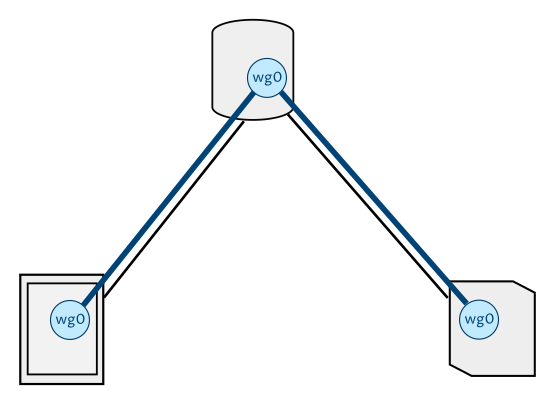
At the top of this configuration at the top of this Ʌ (upside-down V) is your VPS server reachable via the internet, which acts as the “hub” (“star-center”) and hosts the Traefik reverse proxy. Connected to this hub is your home server, where Gitea and other services will run. Both are linked securely using WireGuard in a Virtualized Mesh Network, creating a private and encrypted connection between them.
For a step-by-step guide on setting up a WireGuard virtualized mesh network, check out the WireGuard section in the ODROID-M1: Dockerized Home Assistant page.
Getting my Hub and Spoke setup to work took some time, mainly because I overlooked the following lines in the wg0.conf at my star center at my netcup VPS:
# Allow routing between clients
PostUp = iptables -A FORWARD -i %i -j ACCEPT; iptables -A FORWARD -o %i -j ACCEPT
PostDown = iptables -D FORWARD -i %i -j ACCEPT; iptables -D FORWARD -o %i -j ACCEPT
As detailed in Wireguard Netzwerk mit Routing einrichten.
In the Traefik docker-compose.yml from my previous post, I still use
traefik:v2.8.0. If you want to utilize a more recent version, check out Christian Lempa’s boilerplates and specifically his docker-compose/traefik file. Currently, this usestraefik:v3.3.3.
For this guide, I’ll assume you’re working with a VPS, have Traefik set up as a reverse proxy on this VPS, and that the VPS is accessible via the internet at your-domain.tld.
Getting Started
The process for setting up a docker compose instance is well-documented in the Installation with Docker Gitea documentation page, which is an excellent resource to have handy.
A significant portion of the setup below is inspired by Vladimir Mikhalev’ gitea-traefik-letsencrypt-docker-compose repository on GitHub.
I simplified it by removing the integrated backup mechanisms, as I prefer using tools like Borg or Duplicati for backups.
If you’re curious about the full setup, Vladimir’s complete guide is available on his website.
For your convenience, I’ll walk you through the steps here, adding a few extra comments to guide you smoothly along the way.
On your Home Server
Let’s start by setting up the necessary file system structure on your home server to run Gitea.
Make sure to perform these steps as the root user for proper permissions.
mkdir -p /opt/gitea/config/{postgres/data,gitea/data} && chmod a+w /opt/gitea/config/gitea/dataNext, copy the docker-compose.yaml and .env files into the /opt/gitea/ directory.
These files are essential for configuring your Gitea setup:
- The
docker-compose.yamlfile defines the services needed to run Gitea. - The
.envfile stores environment variables for your configuration.
docker-compose.yaml
########################### EXTENSION FIELDS
# Helps eliminate repetition of sections
# Keys common to some of the core services that we always to automatically restart on failure
x-common-keys-core: &common-keys-core
  restart: unless-stopped

# docker compose up -d
# docker compose config

name: gitea
services:
  postgres:
    image: ${GITEA_POSTGRES_IMAGE_TAG}
    <<: *common-keys-core
    volumes:
      - ./config/postgres/data:/var/lib/postgresql/data
    environment:
      POSTGRES_DB: ${GITEA_DB_NAME}
      POSTGRES_USER: ${GITEA_DB_USER}
      POSTGRES_PASSWORD: ${GITEA_DB_PASSWORD}
    healthcheck:
      test: [ "CMD", "pg_isready", "-q", "-d", "${GITEA_DB_NAME}", "-U", "${GITEA_DB_USER}" ]
      interval: 10s
      timeout: 5s
      retries: 3
      start_period: 60s
    restart: unless-stopped
  gitea:
    image: ${GITEA_IMAGE_TAG}
    <<: *common-keys-core
    ports:
      - 3000:3000
      - 2222:22
    volumes:
      - ./config/gitea/data:/${DATA_PATH}
      - /etc/timezone:/etc/timezone:ro
      - /etc/localtime:/etc/localtime:ro
    environment:
      GITEA_DATABASE_HOST: postgres
      GITEA_DATABASE_NAME: ${GITEA_DB_NAME}
      GITEA_DATABASE_USERNAME: ${GITEA_DB_USER}
      GITEA_DATABASE_PASSWORD: ${GITEA_DB_PASSWORD}
      GITEA_ADMIN_USER: ${GITEA_ADMIN_USERNAME}
      GITEA_ADMIN_PASSWORD: ${GITEA_ADMIN_PASSWORD}
      GITEA_ADMIN_EMAIL: ${GITEA_ADMIN_EMAIL}
      GITEA_RUN_MODE: prod
      GITEA_DOMAIN: ${GITEA_HOSTNAME}
      GITEA_SSH_DOMAIN: ${GITEA_HOSTNAME}
      GITEA_ROOT_URL: ${GITEA_URL}
      GITEA_HTTP_PORT: 3000
      GITEA_SSH_PORT: ${GITEA_SHELL_SSH_PORT}
      GITEA_SSH_LISTEN_PORT: 22
    healthcheck:
      test: ["CMD", "curl", "-f", "http://localhost:3000/"]
      interval: 10s
      timeout: 5s
      retries: 3
      start_period: 90s
    restart: unless-stopped
    depends_on:
      postgres:
condition: service_healthy.env:
GITEA_POSTGRES_IMAGE_TAG=postgres:17.7
GITEA_IMAGE_TAG=bitnamilegacy/gitea:1.23.1
GITEA_DB_NAME=giteadb
GITEA_DB_USER=giteadbuser
GITEA_DB_PASSWORD=...somesecretpassword....           # `openssl rand -base64 15` or `pwgen -cnys 15 1` or use keepassx "Password Generator" functionality
GITEA_ADMIN_USERNAME=giteaadmin
GITEA_ADMIN_PASSWORD=...somesecretpassword....        # `openssl rand -base64 15` or `pwgen -cnys 15 1` or use keepassx "Password Generator" functionality
GITEA_ADMIN_EMAIL=giteaadmin@gitea.your-domain.tld
GITEA_URL=https://gitea.your-domain.tld
GITEA_HOSTNAME=gitea.your-domain.tld
GITEA_SHELL_SSH_PORT=2222
DATA_PATH=/bitnami/gitea
Now, verify that everything is set up correctly. Run:
docker compose configThe output should confirm that all variables have been successfully replaced with the values from your .env file.
Finally, you’re ready to start your Docker stack. Run:
docker compose up -dThis command will start all the services in the background, and your Gitea instance will be up and running.
On your Virtual Private Server (VPS)
Let’s continue with extending our set-up of our VPS server. You’ll need to make a few adjustments to your Traefik Reverse Proxy configurations.
Start by updating the configuration in /opt/traefik/docker-compose.yml. Add or adapt the following settings as needed:
    ports:
      - "2222:2222"
    volumes:
      - ./traefik-config/traefik.yml:/etc/traefik/traefik.yml
      - ./traefik-config/dynamic.yml:/etc/traefik/dynamic/dynamic.yml
      - ./traefik-config/dynamic-tcp.yml:/etc/traefik/dynamic/dynamic-tcp.yml
Next, modify the Traefik configuration file at /opt/traefik/traefik-config/traefik.yml. Make sure to include or update the following:
entryPoints:
  web:
    address: ":80"
    http:
      redirections:
        entryPoint:
          to: web-secure
          scheme: https
  web-secure:
    address: ":443"
    http2:
      maxConcurrentStreams: 250
    http3:
      advertisedPort: 443
  git-ssh:
    address: ":2222"

providers:
  file:
    directory: /etc/traefik/dynamic
    watch: true
Then, head over to /opt/traefik/traefik-config/dynamic.yml and add or adjust the following lines:
http:
  middlewares:
    compresstraefik:
      compress: true
  routers:
    gitea-router:
      rule: "Host(`gitea.your-domain.tld`)"
      service: gitea-service
      middlewares:
        - compresstraefik
      tls:
        certResolver: default
  services:
    gitea-service:
      loadBalancer:
        passHostHeader: true
        servers:
          - url: "http://10.0.1.5:3000"
Finally, update the TCP configuration in /opt/traefik/traefik-config/dynamic-tcp.yml. Add or adapt the following:
tcp:
  routers:
    gitea-ssh-router:
      rule: "HostSNI(`*`)"
      service: gitea-ssh-service
      entrypoints:
        - git-ssh
  services:
    gitea-ssh-service:
      loadBalancer:
        servers:
          - address: "10.0.1.5:2222"
Gitea Configuration
The Gitea configuration file is located at config/gitea/data/custom/conf/app.ini.
Below are some key settings you may want to adjust to make your self-hosted repository more private and secure.
Here’s a quick overview in diff format of the changes I’d suggest you might want to consider:
7a8,9
> DEFAULT_PRIVATE=private
> FORCE_PRIVATE=true
78c80
< DISABLE_REGISTRATION=false
---
> DISABLE_REGISTRATION=true
81,82c83,84
< REQUIRE_SIGNIN_VIEW=false
< DEFAULT_KEEP_EMAIL_PRIVATE=false
---
> REQUIRE_SIGNIN_VIEW=true
> DEFAULT_KEEP_EMAIL_PRIVATE=true
DEFAULT_PRIVATE=privateandFORCE_PRIVATE=true: These settings ensure that all new repositories are private by default and prevent users from creating public repositories, which is ideal for keeping your code secure and private.DISABLE_REGISTRATION=true: This disables user registration, meaning only you (or users you explicitly create) can access your Gitea instance. This is a good security measure if you’re the only one who needs access.REQUIRE_SIGNIN_VIEW=trueandDEFAULT_KEEP_EMAIL_PRIVATE=true: These settings require users to sign in before viewing repositories and keep their email addresses private by default, adding an extra layer of security and privacy for your users.
I’d also advise to turn on Multi-factor Authentication (MFA) for your user accounts on Gitea in the > Settings > Security section.
Enabling MFA on a user does affect how the Git HTTP protocol can be used with the Git CLI. This interface does not support MFA, and trying to use a password normally will no longer be possible whilst MFA is enabled.
Your usual way of dealing with repositories where MFA is enabled is to use SSH Keys in the > Settings > SSH / GPG Keys section.
If SSH is not an option for Git operations, an access token can be generated within the “Applications” tab of the user settings page. This access token can be used as if it were a password in order to allow the Git CLI to function over HTTP.
Warning: By its very nature, an access token sidesteps the security benefits of MFA. It must be kept secure and should only be used as a last resort.
For a full list of configuration options, check out the Gitea Configuration Cheat Sheet.
Conclusions
That’s it! You’ve successfully set up your own self-hosted Gitea server with Traefik as a reverse proxy. By taking these steps, you’ve not only created a private and secure space for your code but also taken a significant step toward reclaiming control over your digital privacy and independence.
Now that you’re up and running, think about all the possibilities - hosting your personal projects, collaborating with trusted contributors, or even creating a private repository for sensitive work. You’re in full control of your data, free from third-party dependencies.
Appendix
Git Remote Gcrypt
While git-remote-gcrypt has nothing to do with Gitea, it can be a useful addition for secure Git hosting.
git-remote-gcrypt lets you maintain PGP-encrypted Git remotes.
This means only the local machine, where you work with the repository, can see the unencrypted files. All data on the remote server stays encrypted.
Internally, git-remote-gcrypt uses GnuPG to encrypt all objects in the repository, so the remote server never sees the repository in plain text.
For efficiency, git-remote-gcrypt is best used with rsync.
Although other options exist, we won’t cover them here.
rsync connects to the remote server over SSH, so you do need SSH access on that server.
As an example, I keep my private “paperless office” in a Git repository and use git-remote-gcrypt to synchronize it to my home server (the same server running Gitea).
The first step is to install git-remote-gcrypt:
apt install git-remote-gcryptI will use a hardware GPG key backed by a Trezor as described in PGP via Roman Zayde’s Trezor-agent.
That post also explains how to set up the trezor-venv alias we use to configure the system for a Trezor-backed GPG key.
I place these git-remote-gcrypt remotes under /opt/offsite_backup_storage/git-remote-gcrypt so they’re included in my daily offsite backups, as described in Home Server Blueprint: Rock-Solid Home Server with Unattended Reboots, Secure Disk Encryption, and Cost-Effective Offsite Backups.
Let’s assume you are already inside the paperless-office Git repository that you want to push via git-remote-gcrypt to your home server. First, configure the new remote:
trezor-venv
cd paperless-office
git remote add cryptremote gcrypt::rsync://homeserver-as-root/opt/offsite_backup_storage/git-remote-gcrypt/paperless-office
Next, make a few adaptations to some git config values, as explained in the README.rst of git-remote-gcrypt:
KEY_ID="$(gpgconf --list-options gpg | awk -F: '/^default-key:/ {gsub(/"/,"",$NF); print $NF}')" && git config gcrypt.participants $KEY_ID && git config remote.cryptremote.gcrypt-signingkey $KEY_ID && git config gcrypt.publish-participants true && git config gcrypt.require-explicit-force-push true
cat .git/config
Finally, you can push to the remote:
git push --progress -v --force cryptremote --all --tagsAnd fetch from it:
git fetch --progress -v cryptremoteA git clone would look like this:
git clone gcrypt::rsync://homeserver-as-root/opt/offsite_backup_storage/git-remote-gcrypt/paperless-officeSyncing from a Git Bundle
Sometimes I keep a Git repository entirely on a local computer but occasionally make a git bundle backup:
cd paperless-office
git bundle create YYYY-mm-dd-paperless-office.bundle --all
If you decide later that you also want to replicate that same repo to a git-remote-gcrypt location, you can do the following:
First, clone the bundle locally:
git clone YYYY-mm-dd-paperless-office.bundle YYYY-mm-dd-paperless-officeThen proceed as we did above:
cd YYYY-mm-dd-paperless-office
git remote add cryptremote gcrypt::rsync://homeserver-as-root/opt/offsite_backup_storage/git-remote-gcrypt/paperless-office

KEY_ID="$(gpgconf --list-options gpg | awk -F: '/^default-key:/ {gsub(/"/,"",$NF); print $NF}')" && git config gcrypt.participants $KEY_ID && git config remote.cryptremote.gcrypt-signingkey $KEY_ID && git config gcrypt.publish-participants true && git config gcrypt.require-explicit-force-push true
cat .git/config

git push --progress -v --force cryptremote --all --tags
Then you clone from your remote git-remote-gcrypt to its “persistent” name without the YYYY-mm-dd- and .bundle:
cd ..
git clone gcrypt::rsync://homeserver-as-root/opt/offsite_backup_storage/git-remote-gcrypt/paperless-office
After this clone, your remote will be called origin rather than cryptremote, but that’s fine.
git remote -vFrom now on, you can handle every incremental .bundle file as follows:
cd paperless-office
git fetch ../YYYY-mm-dd-paperless-office.bundle refs/heads/*:refs/heads/*
git checkout master
# FETCH_HEAD is a temporary reference Git creates whenever you fetch from a remote (or bundle).
# Git stores the tip commit(s) you fetched in a file named .git/FETCH_HEAD
git tag YYYY-mm-dd-paperless-office.bundle FETCH_HEAD
git merge FETCH_HEAD
git log --graph --oneline --decorate # Review the merge result by running
git push --progress -v --force origin --all --tags
# Or: git push --progress -v --force origin --mirror
Using git-remote-gcrypt with rsync and SSH provides an efficient and secure way to store and back up your Git repositories.
It helps ensure your data remains encrypted at all times when it’s on a remote server, while still allowing you to work with unencrypted data locally.
This method is especially useful for confidential or personal projects where you need full control over your repository’s security.
Gitea upgrade
Bitnami, which is now part of Broadcom and VMware, changed how they publish container images in the middle and end of 2025.
Bitnami images are prebuilt container images that include an application, its runtime, and some opinionated defaults. They are popular because you can start a production-ready setup with very little manual configuration.
The most important changes are:
- The old
docker.io/bitnami/*catalog is being removed.
Thebitnamiorganization on Docker Hub is going away, and most versioned images are now behind a paid “Bitnami Secure Images” subscription. - All the old tags were moved to
bitnamilegacy/*on Docker Hub.
Bitnami’s announcement says that all existing container images, including older or versioned tags, are migrated fromdocker.io/bitnamito the “Bitnami Legacy” organization (docker.io/bitnamilegacy).
These images are frozen and unsupported. They are intended only as a temporary solution to give users time to migrate. - Ongoing and maintained images now live under the “Bitnami Secure Images” model.
- Production-grade images with versions, long-term support branches, and security updates are part of the paid Bitnami Secure Images offering. These use Bitnami’s own registry and cloud marketplaces.
- There is a free “community and development” slice of this catalog under the
bitnamisecureorganization on Docker Hub. Only a limited set of images is available there and only with the:latesttag.
For Gitea specifically, Bitnami now treats it as a Bitnami Secure Image. You can see this in their application catalog and documentation. This means that long-term maintenance is tied to the new Secure Images model.
However, you can still see active updates in the related GitHub repository: Bitnami Secure Image for Gitea[1]. That repository continues to track recent Gitea releases.
To make the main part of this blog post work with the current Bitnami changes, I updated the .env file and pointed the Gitea image to a legacy tag:
GITEA_IMAGE_TAG=bitnamilegacy/gitea:1.23.1This is good enough to get the stack running, but it is not a long-term solution. At some point the legacy images may disappear or stop receiving security fixes.
The Bitnami Gitea GitHub folder mirrors the Bitnami source layout and still exposes the same interface that this blog post uses:
- Environment variables such as
GITEA_DATABASE_HOST,GITEA_DATABASE_NAME,GITEA_DATABASE_USERNAME,GITEA_DATABASE_PASSWORD,GITEA_ADMIN_USER,GITEA_ADMIN_PASSWORD,GITEA_ADMIN_EMAIL,GITEA_DOMAIN,GITEA_SSH_DOMAIN,GITEA_HTTP_PORT,GITEA_SSH_PORT,GITEA_SSH_LISTEN_PORT, and others. You can see the full table in the upstream README. - The data path remains
/bitnami/gitea, which matchesDATA_PATH=/bitnami/giteain the blog post.envfile. - The default ports stay at
3000for HTTP and2222for SSH, as defined ingitea/docker-compose.yml.
At the time of writing, the Dockerfile in bitnami/gitea/1/debian-12 builds Gitea version 1.25.2.
You can see that in the org.opencontainers.image.version label inside the Dockerfile.
The next section explains how to build and use your own image that follows recent stable Gitea releases, while still working with the configuration used in this post.
Steps to build and use your own image
- Clone the Bitnami container sources, or a fork that you trust to stay available:
cd /opt/src   # any working directory on the Gitea host
git clone https://github.com/bitnami/containers.git bitnami-containers
# Alternatively use my own clone: https://github.com/cs224/bitnami-containers
cd bitnami-containers/bitnami/gitea/1/debian-12
grep org.opencontainers.image.version Dockerfile  # confirm the Gitea version you are about to build
Pick the branch or commit that matches the stable release you want to run. You can check the current stable versions in the official documentation.
Quick ways to pick the right commit:
- Show a short history for this Dockerfile:
git log --oneline -- bitnami/gitea/1/debian-12/Dockerfile | head -20- For a target version such as
1.26.0, search for it:rg "1.26" bitnami/gitea/1/debian-12/Dockerfileorgit grep "1.26" -- bitnami/gitea/1/debian-12/Dockerfile- Inspect a candidate commit without checking it out:
git show <commit>:bitnami/gitea/1/debian-12/Dockerfile | rg org.opencontainers.image.version- When you find the commit that sets the
org.opencontainers.image.versionlabel and thegitea-<version>tarball in theCOMPONENTSarray to your target version, check out that commit or create a local branch and build from there.- If there is no commit yet for your exact target version, stay on
main, note the current version, and decide if you want to wait or use the latest available.
If you do not use
rg(ripgrep), you can replace thergcommands withgrep. They just provide a fast way to search inside the repository.
- Build and tag the image locally:
docker build -t gitea-selfhosted:1.25.2 .
# Optional: set the target architecture explicitly
# docker build --build-arg TARGETARCH=$(dpkg --print-architecture) -t gitea-selfhosted:1.25.2 .
The build downloads Bitnami prebuilt components during the RUN --mount=type=secret step, so make sure the host can reach the Bitnami download endpoint.
During the build, the Dockerfile downloads tarballs such as
gitea-<version>-linux-${OS_ARCH}-debian-12.tar.gzand helper components fromhttps://${DOWNLOADS_URL}. By default this URL isdownloads.bitnami.com/files/stacksmith. Theenv=SECRET_DOWNLOADS_URLargument is an optional BuildKit secret. If you have a licensed or private Bitnami mirror, you can pass it with:docker build --secret id=downloads_url,env=SECRET_DOWNLOADS_URL=your.mirror/path -t gitea-selfhosted:1.25.2 .
If you do nothing, the build simply uses the public DOWNLOADS_URL defined in the Dockerfile.
This works at the time of writing without any secret.
The build also checks the SHA-256 hash for every downloaded tarball.
If that check fails, you most likely have a network problem or a corrupt download.
Only the application payload lives inside the
gitea-<version>...tar.gzcomponent. The helper scripts mentioned in the Dockerfile, such as/opt/bitnami/scripts/gitea/postunpack.sh,entrypoint.sh, andrun.sh, are stored in the repository under1/debian-12/rootfs/opt/bitnami/scripts/gitea/. They are added to the image by theCOPY rootfs /line during the build, so you will not see them inside the downloaded tarballs.
- Point your existing Compose stack to the freshly built image by editing
/opt/gitea/.env(from the main blog setup) and set:
GITEA_IMAGE_TAG=gitea-selfhosted:1.25.2Leave the other environment variables unchanged. The container still understands the same GITEA_* and database variables that the blog post uses.
- Redeploy using the new image. If you want an extra safety net, first back up your data volume:
cd /opt/gitea
docker compose config        # verify env substitution

# Optional backup:
# rsync -a ./config/gitea/data ./config/gitea/data.bak.$(date +%Y%m%d-%H%M%S)

docker compose up -d
docker compose logs -f gitea
Because your data is stored in ./config/gitea/data and this directory is mounted into the container at /bitnami/gitea, redeploying keeps your repositories and settings intact.
- Repeat these steps for future releases:
cd /opt/src/bitnami-containers
git fetch origin
cd bitnami/gitea/1/debian-12
grep org.opencontainers.image.version Dockerfile  # check the new version
NEW_VER=1.26.x   # replace with the version you see
docker build -t gitea-selfhosted:${NEW_VER} .
sed -i "s/^GITEA_IMAGE_TAG=.*/GITEA_IMAGE_TAG=gitea-selfhosted:${NEW_VER}/" /opt/gitea/.env
cd /opt/gitea && docker compose up -d gitea
Keep the old image tag locally until you are confident that the upgrade is stable. If you need to roll back, restore the previous GITEA_IMAGE_TAG value in .env and run docker compose up -d again.
Upgrading PostgreSQL
When I upgraded PostgreSQL from the original 17.2 image to a newer 17.x image, I started to see the following warnings with PostgreSQL 17.5:
postgres-1  | 2025-11-17 18:22:57.589 UTC [47] WARNING:  database "giteadb" has a collation version mismatch
postgres-1  | 2025-11-17 18:22:57.589 UTC [47] DETAIL:  The database was created using collation version 2.36, but the operating system provides version 2.41.
postgres-1  | 2025-11-17 18:22:57.589 UTC [47] HINT:  Rebuild all objects in this database that use the default collation and run ALTER DATABASE giteadb REFRESH COLLATION VERSION, or build PostgreSQL with the right library version.
In plain language, the warning says that the database giteadb has a collation version mismatch.
The database was created when the system used collation version 2.36, but the current operating system provides collation version 2.41.
A short summary:
- “Collation” is the set of rules that define how text is sorted and compared, for example when you run
ORDER BYor when PostgreSQL checks aUNIQUEindex on atextcolumn.- PostgreSQL uses the operating system C library (glibc) or ICU to implement these rules.
- When a database or a collation is created, PostgreSQL stores the collation version from the operating system.
- After an operating system upgrade, or in Docker after a base image upgrade, the same locale such as
en_US.UTF-8can have a new version number, here2.41instead of2.36.- On startup, PostgreSQL compares the current operating system collation version with the version recorded for each database. If they do not match, you see this warning.
Those version numbers like
2.36and2.41are glibc versions. The change appeared because the newerpostgres:17.ximage is based on a newer Debian base with a newer glibc version.Why does PostgreSQL care? If the collation rules change, text indexes that depend on them can become inconsistent with the new rules. This can lead to:
- Slightly different
ORDER BYresults.- In the worst case, incorrect behavior of
UNIQUEindexes on text. For example, the new collation might now consider two strings equal that previously were different, or the other way round.This is why PostgreSQL shows the warning and suggests that you rebuild the affected objects and run
ALTER DATABASE ... REFRESH COLLATION VERSION.
The best practice is to reindex and then refresh the recorded collation version. This keeps your data and gives you correct indexes under the new collation version.
Example environment values from the Gitea setup:
GITEA_DB_NAME=giteadb
GITEA_DB_USER=giteadbuser
GITEA_DB_PASSWORD=...somesecretpassword....
You can follow these steps.
-
Take a backup first
docker compose exec -t postgres pg_dump -U <GITEA_DB_USER> <GITEA_DB_NAME> > giteadb-$(date +%F).sqlThis gives you a simple SQL dump that you can restore if something goes wrong.
-
Reindex the whole database
Start an interactive
psqlsession:docker compose exec -it postgres psql -U <GITEA_DB_USER> -d <GITEA_DB_NAME>Then run in
psql:REINDEX DATABASE giteadb;For a typical Gitea database, this is usually quite fast. However, the affected tables are locked during
REINDEX, so it is better to do this during a maintenance window if you use the instance for real work. -
Refresh the recorded collation version
Still inside
psql, run as a superuser:ALTER DATABASE <GITEA_DB_NAME> REFRESH COLLATION VERSION;This updates the PostgreSQL metadata so that the database now matches the current operating system collation version. The warning disappears on the next start.
Important: If you only run
ALTER DATABASE ... REFRESH COLLATION VERSIONwithout reindexing, you only hide the warning. Any indexes that depend on collation keep their old ordering. That might still be acceptable for some development setups, but it is not the safe option for data that you care about.
Upgrading PostgreSQL from v17 to v18
Moving from PostgreSQL v17 to v18 is not the same as a minor upgrade inside the v17 series.
It is a major version upgrade.
PostgreSQL changes its internal storage format between major versions, so you cannot simply point a v18 container at a v17 data directory and expect it to work.
The recommended options are either a “dump and restore” or a controlled upgrade with pg_upgrade into a new data directory.
For a typical self hosted Gitea setup with a small database, the simplest and safest choice is a logical dump and restore.
That means you export the data from v17 into a .sql file, start a fresh v18 instance with an empty data directory, and then import the dump.
In addition, the official PostgreSQL Docker image changes its default data directory in v18.
The default PGDATA path is now version specific, for example /var/lib/postgresql/18/docker, and the defined VOLUME inside the image moved from /var/lib/postgresql/data to /var/lib/postgresql.
This means your volume mount path in docker-compose.yml needs an update.
Below is a pragmatic step by step process for a Gitea-only database.
Assumptions for the examples:
- The PostgreSQL service is called
postgresindocker-compose.yml. - Gitea uses a single database called
giteadbwith usergiteadbuser. - The current v17 container uses a bind mount like
./config/postgres/data:/var/lib/postgresql/data.
If you used a different path, adapt the commands accordingly.
GITEA_DB_NAME=giteadb
GITEA_DB_USER=giteadbuser
GITEA_DB_PASSWORD=...somesecretpassword...
Create a logical backup on v17
Create a fresh dump from your running v17 container. This is your safety net.
From the host, in the directory where your docker-compose.yml lives:
cd /opt/gitea   # or your stack root

# Backup only the Gitea database
docker compose exec -t postgres pg_dump -U "${GITEA_DB_USER}" "${GITEA_DB_NAME}" > giteadb-$(date +%F)-pg17.sql
If your database is very small, you can also dump everything, including global objects such as roles:
docker compose exec -t postgres pg_dumpall -U "${GITEA_DB_USER}" > gitea-all-$(date +%F)-pg17.sqlStore these files somewhere safe, ideally outside the PostgreSQL data directory.
For extra safety, you can keep both a logical dump (the
.sqlfile) and a file system copy of the existing v17 data directory. The logical dump is what you will use to restore into v18. The file system copy mostly exists as a last resort in case you need to recreate a v17 instance exactly as it was.
Stop the stack and archive the old v17 data directory
Stop Gitea and PostgreSQL:
cd /opt/gitea
docker compose down
Find the host directory that stores your PostgreSQL data. In many simple setups from this blog series it looks like this in docker-compose.yml:
services:
  postgres:
    image: postgres:17
    volumes:
      - ./config/postgres/data:/var/lib/postgresql/data
In that case, archive or rename the existing directory so that PostgreSQL 18 does not try to start on top of the old cluster:
cd /opt/gitea
mv ./config/postgres/data ./config/postgres/data.pg17.bak.$(date +%F)
mkdir -p ./config/postgres/data
Now ./config/postgres/data is empty again and ready for the new v18 cluster.
You have kept the old v17 data directory just in case you need to roll back.
Update the PostgreSQL service to v18 and adjust the volume mount
Edit your docker-compose.yml and update the PostgreSQL service. The two important changes are:
- Pin the image to a v18 tag.
- Mount your host directory to
/var/lib/postgresqlinstead of/var/lib/postgresql/data, and optionally setPGDATAexplicitly.
Example:
services:
  postgres:
    image: postgres:18.1           # pin a concrete 18.x version
    restart: unless-stopped
    environment:
      - POSTGRES_DB=${GITEA_DB_NAME}
      - POSTGRES_USER=${GITEA_DB_USER}
      - POSTGRES_PASSWORD=${GITEA_DB_PASSWORD}
      # optional but recommended: make PGDATA explicit
      - PGDATA=/var/lib/postgresql/18/docker
    volumes:
      # host directory now mounted at /var/lib/postgresql
      - ./config/postgres/data:/var/lib/postgresql
The official image documentation explains that from PostgreSQL 18 onward the default PGDATA path is version specific, for example /var/lib/postgresql/18/docker, and that the declared VOLUME is /var/lib/postgresql.
Mounting your volume there follows this new model and avoids anonymous internal volumes.
If you want a smoother future upgrade from v18 to v19, keeping this pattern helps. Each major version will use its own directory inside
/var/lib/postgresql, and you can decide whether you want to usepg_upgradeor another dump and restore into a fresh directory.
Start PostgreSQL 18 and let it initialize
Start only PostgreSQL first and watch the logs:
cd /opt/gitea
docker compose up -d postgres
docker compose logs -f postgres
On the first start, the container will notice that PGDATA is empty, initialize a new cluster for v18, create the default database and the POSTGRES_USER role, and then begin to accept connections.
Wait until you see a message such as:
database system is ready to accept connectionsThen stop following the logs with Ctrl + C.
Restore the Gitea database into v18
Now import the backup you created in Step 2 into the new v18 cluster.
For a single database dump:
cd /opt/gitea
docker compose exec -T postgres psql -U "${GITEA_DB_USER}" -d "${GITEA_DB_NAME}" < giteadb-YYYY-MM-DD-pg17.sql
Replace giteadb-YYYY-MM-DD-pg17.sql with your actual filename.
If you used
pg_dumpallyou would restore like this:docker compose exec -T postgres psql -U "${GITEA_DB_USER}" < gitea-all-YYYY-MM-DD-pg17.sql
After a large restore, it is good practice to refresh PostgreSQL statistics so that the query planner does not work with empty statistics. You can either wait for autovacuum or trigger it yourself, for example with:
docker compose exec -t postgres vacuumdb -U "${GITEA_DB_USER}" -d "${GITEA_DB_NAME}" --analyze-in-stagesThe official upgrade documentation also recommends running an
ANALYZEafter large imports.
Start Gitea and verify everything
Once the database is restored, bring up the full stack:
cd /opt/gitea
docker compose up -d
Check the Gitea logs for any migration messages or errors:
docker compose logs -f giteaOpen your Gitea web interface and verify that repositories, users, and settings are present and work as expected. Try a test push and pull.
If something looks wrong, you can stop the stack, fix the issue, or in the worst case tear down the v18 cluster, restore the v17 data directory backup, and return to a v17 image.
Clean up and prepare for the next upgrade
If you are happy with the v18 setup and have run it for a while without issues, you can clean up old backup directories and dumps, or move them to offline storage.
Keep in mind for the future:
- Always pin your PostgreSQL image to a specific major and minor version instead of
latest. - For any future v18 to v19 upgrade, plan again for a dump and restore or a
pg_upgraderun. - If you later change to a new base image or a new distribution inside the container and see collation version mismatch warnings again, you can reuse the REINDEX plus
ALTER DATABASE ... REFRESH COLLATION VERSIONprocedure described in the previous section.
Footnotes
I’ve created a fork on GitHub, just to be sure: Bitnami Secure Image for Gitea. ↩︎